Debug Test Cases
Debug Test Case represents a dedicated action and steps for running a test case in debug mode. It allows the user to execute a test step by step in order to closely observe each action, input, and system response. This helps in identifying the exact point where a test fails or behaves incorrectly.
Why it matters / Use Cases:
- Step-by-Step Execution: It runs the test case step by step, or action by action, to closely observe its execution.
- Avoid Test Case Restarts by Keeping the Application Running: Keep the application in a running state so that work can continue without having to restart the test case from the beginning after each modification.
- Improved Test Reliability: Allows careful observation of test execution so that errors can be corrected before regular runs.
- Efficient Troubleshooting: Reduces the time spent investigating failures by running tests step by step.
Prerequisites
- Access to ZeuZ Server with permissions for Testing → Test Case → Create / Edit.
- A test case must be properly defined before debugging.
- The application under test should be running and accessible.
- The necessary environment, test data, and configurations must be prepared.
- Any debug settings, such as breakpoints or step-by-step execution options, must be configured before starting the debug.
Quick-Start
- Open a test case.
- Hit "Debug Test Case" button.
- Select the steps or actions you would like to run/debug.
- Select node, browsers and runtime parameters.
- Hit "Debug" button.
Features
Click the "Debug Test Case" button
- Open a test case from the Create Test Case page.
- After selecting the required test case, click the EDIT button.
- Next, click the Debug Test Case button.
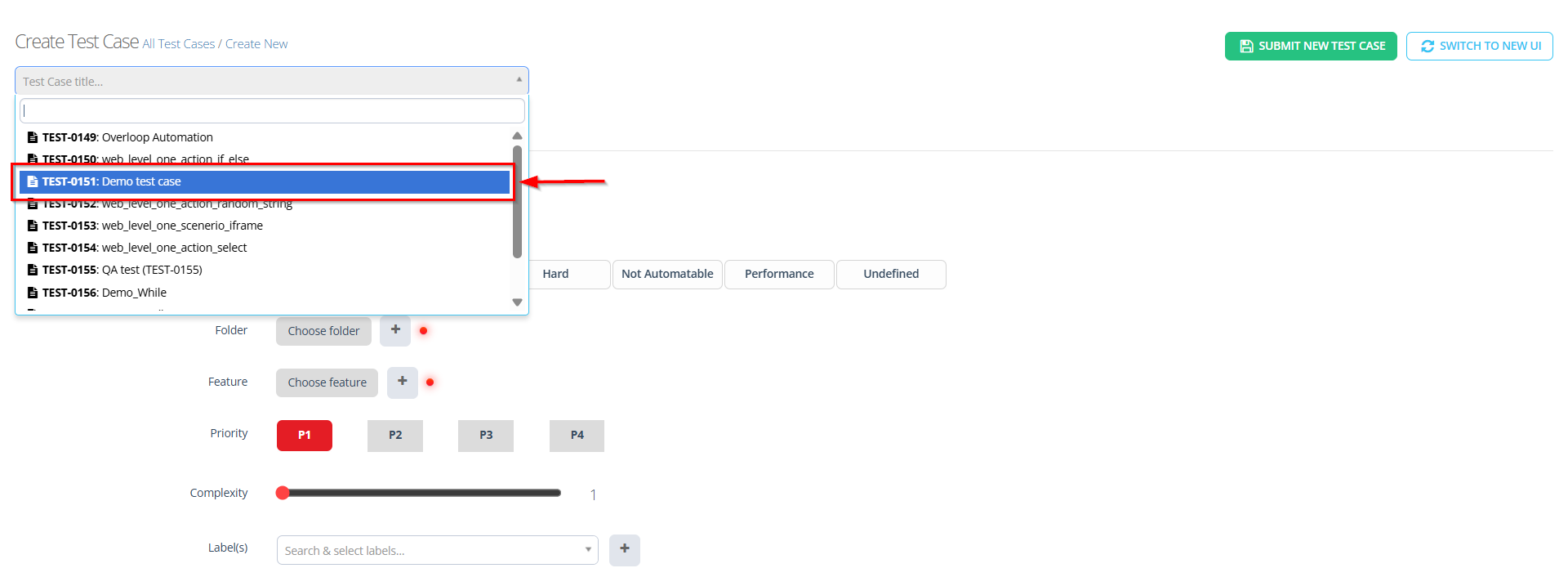
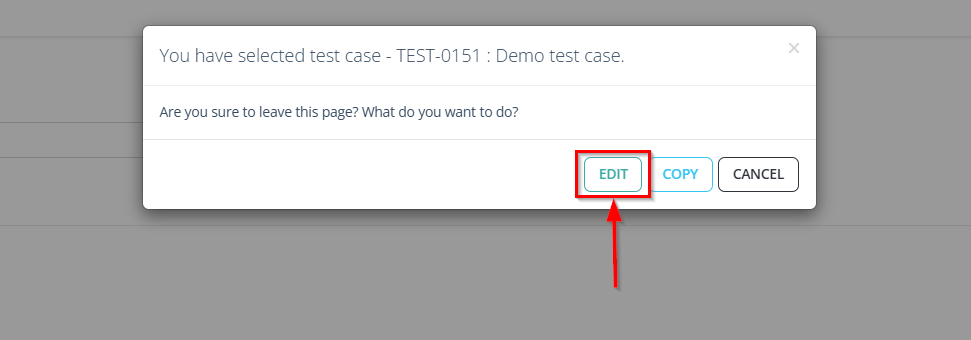
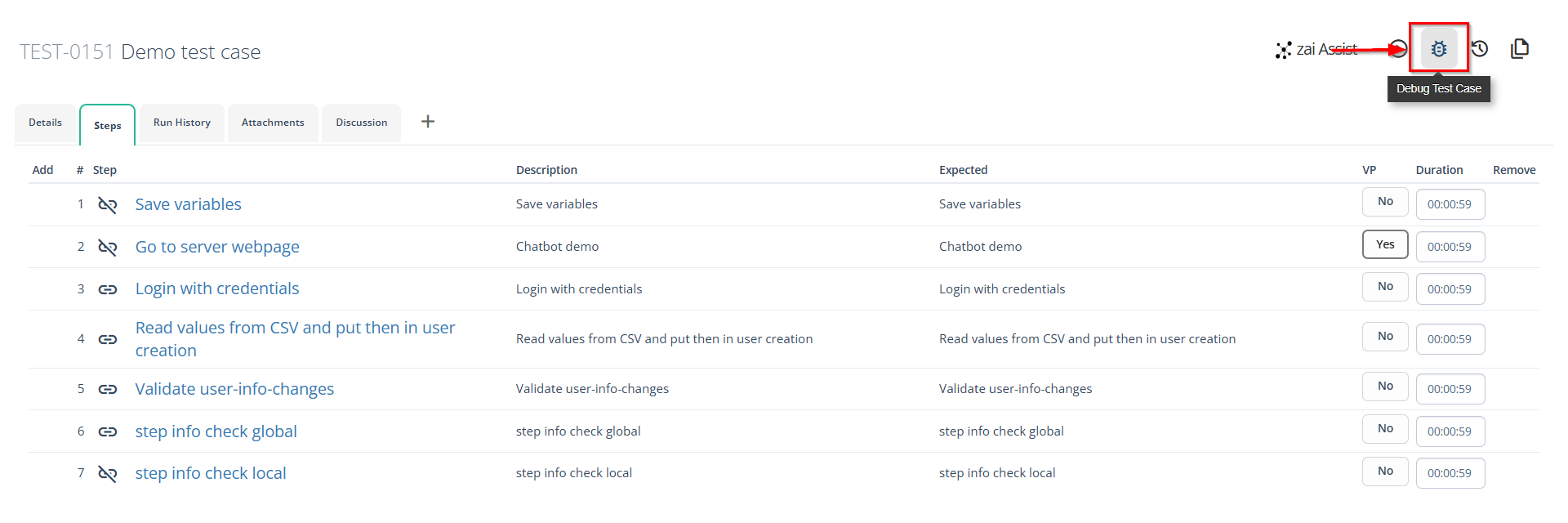
Debug test case page
- Navigate to the Debug Test Case page.
- Fill in the following information:
- Select all steps
- Node
- Preset
- Browser (Google Chrome, Firefox, Microsoft Edge Chromium, Safari, Chrome Headless, Firefox Headless, Edge Chromium Headless, Android Chrome, iOS Safari)
- Mobile (Android, iOS, iOS Simulator)
- Run Time Parameters (if required)
- Variables (if required).
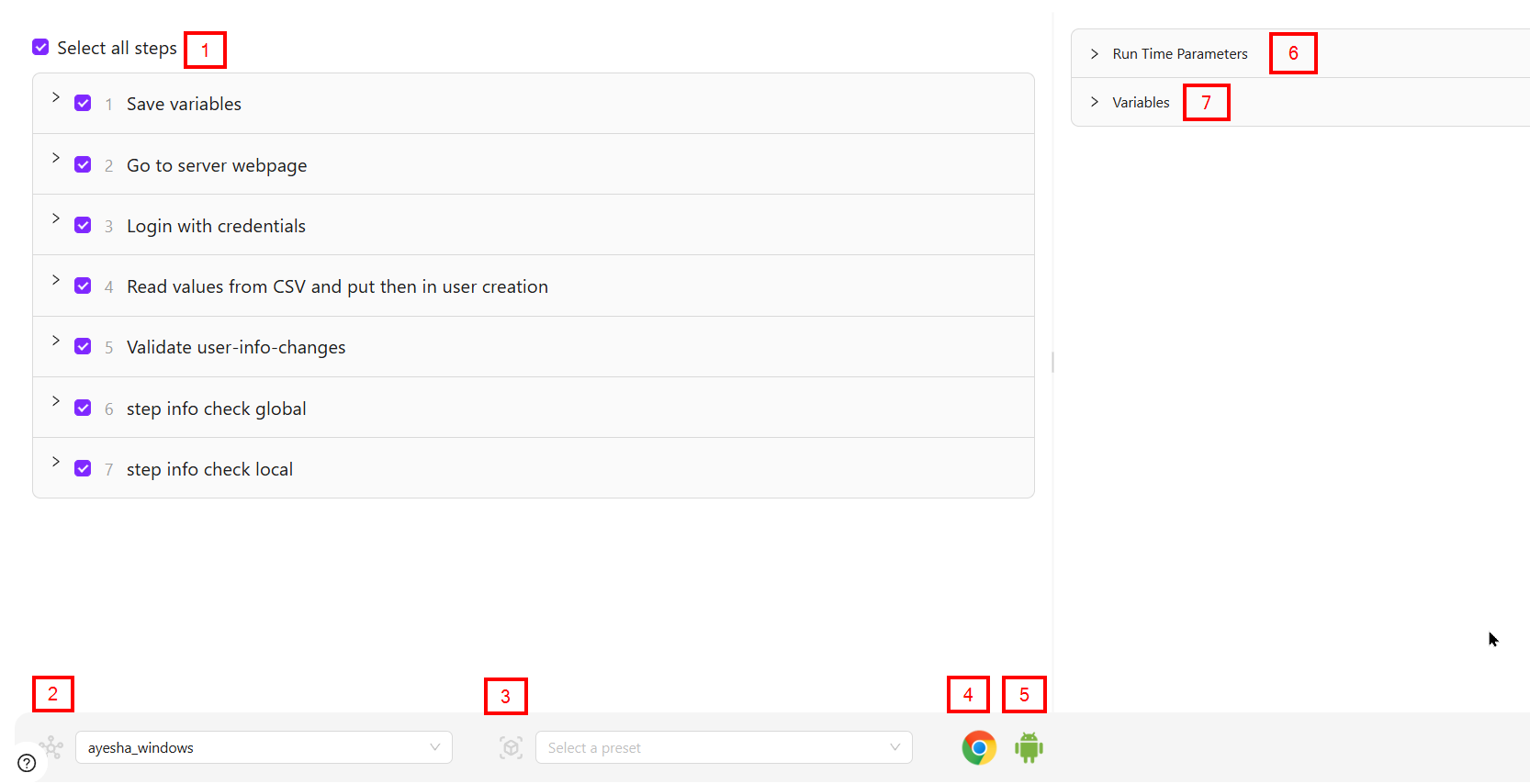
Selection type
- Two types of selection are available:
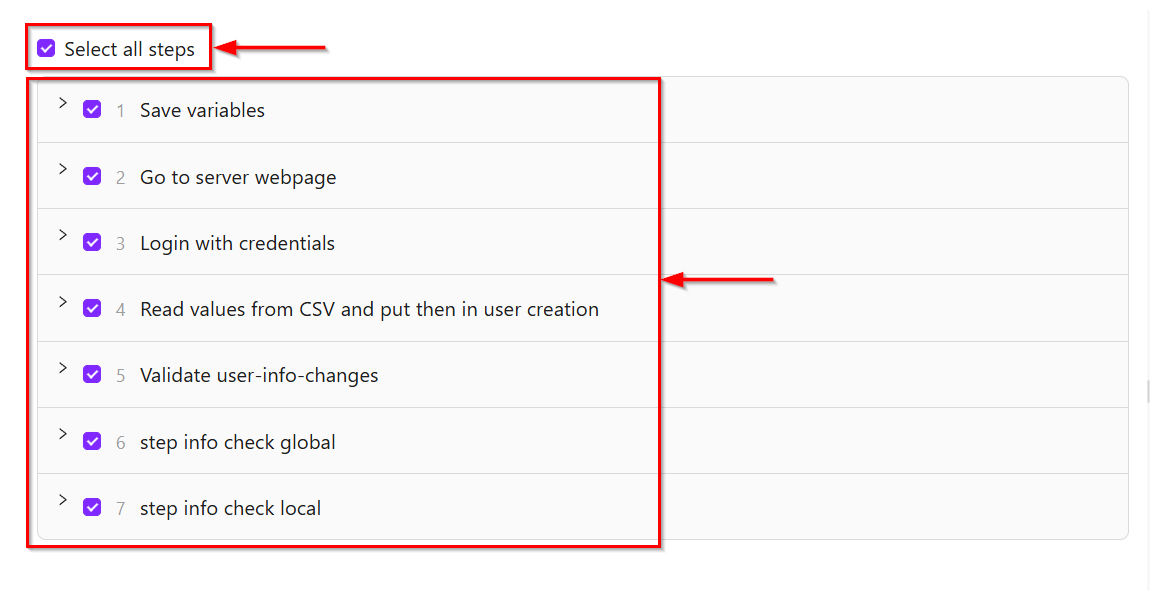
- Select all steps: It selects all steps of the test case for debugging.
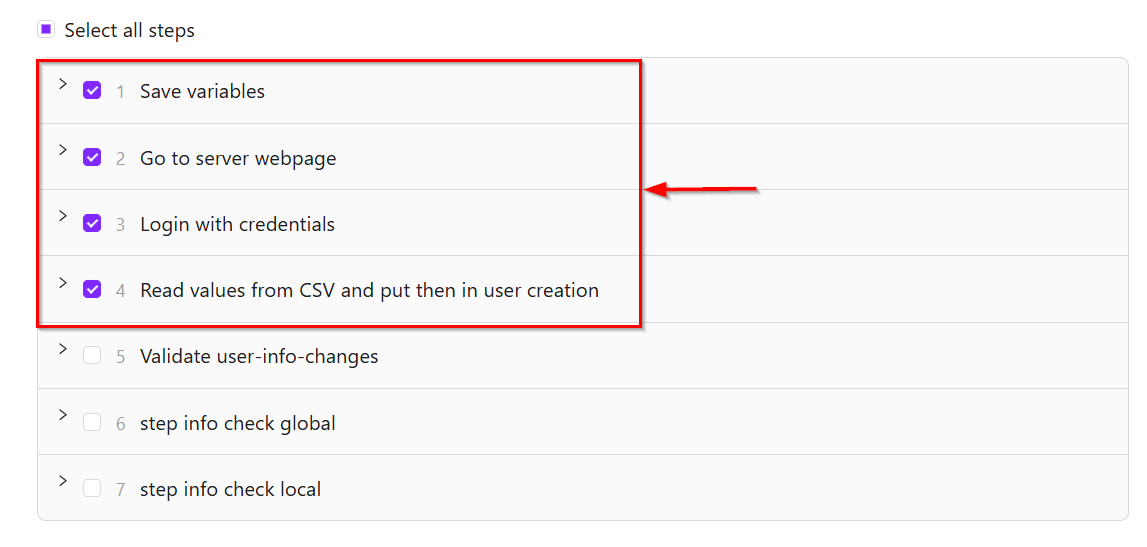
- Select specific steps: It selects the specific steps of the test case that needs to be debugged.
- Click Select all steps for the selection of all steps.
- To debug specific steps, click to select the required ones.
Debug test cases
- To debug test cases, click the Debug button available below.

FAQs / Troubleshooting
Why can't I see all steps when debugging?
Ensure that the test case is properly defined and all steps are added. Only defined steps appear for debugging.
Why does the debug stop unexpectedly?
Check that the required environment, data, and configurations are ready. Any missing dependency may interrupt execution.
Can I debug only specific steps of a test case?
Yes, select the specific steps before clicking the Debug button. This allows focused step-by-step observation.
How do I maintain application state during debugging?
Keep the application running to avoid restarting the test case after each modification.
Can I observe variable values during debugging?
Yes, use the step-by-step mode to inspect data and variable states at each step.
Changelog
- New UI has been introduced [20250712]